n8n In The Loop 2026Flash your device

Cardputer Flasher

Cardputer guides

Guides for getting around, connecting to WiFi and using the apps in loader 0.5.5.

Getting around

  • •Use the arrow keys to move through the menu and ok to open an app.
  • •The button on the back of the device (BtnG0) always returns to the launcher, from anywhere, even if an app has stopped responding. This is the one thing everybody needs to know.
  • •The esc key usually goes back too, but apps are allowed to use it for their own menus.

WiFi

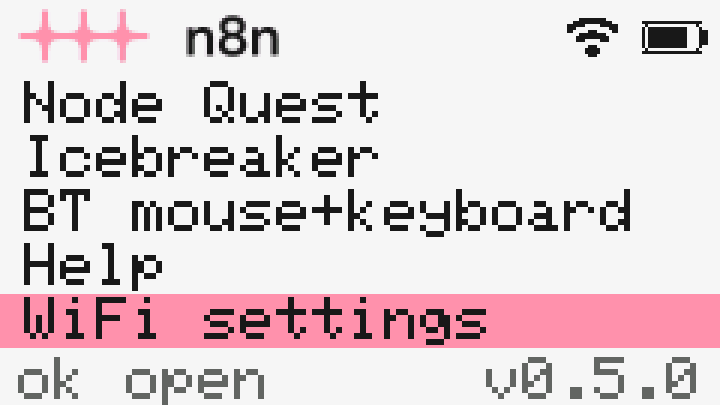
Cardputer menu with WiFi settings selected
WiFi settings is the last item in the menu
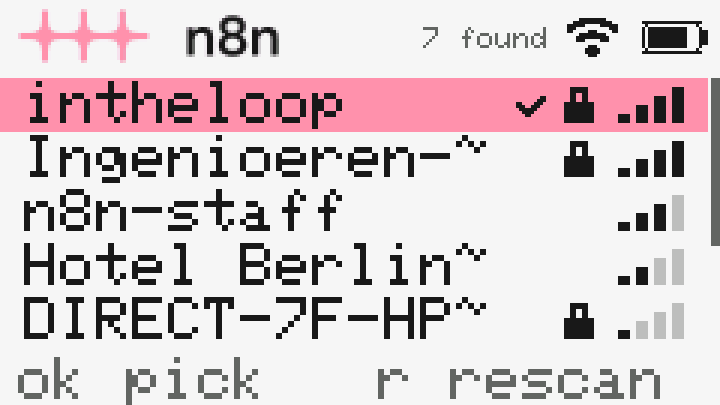
Cardputer list of WiFi networks
Networks in range, strongest first
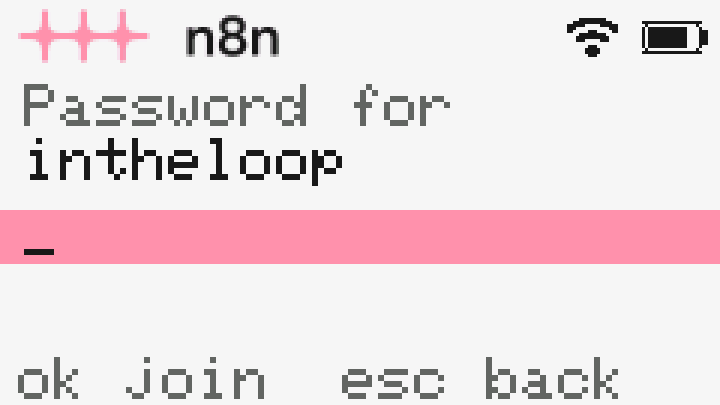
Cardputer WiFi password entry screen
Type the password, then ok
  1. 1Open WiFi settings from the menu. It scans for networks by itself, which takes about six seconds.
  2. 2A check mark is the network you are on now. A lock means it needs a password. The bars show signal strength.
  3. 3Pick a network with the arrow keys and press ok. If it needs a password, type it and press ok. Passwords are at least 8 characters.
  4. 4Press r to scan again. Other network at the bottom is for a hidden network: type its name, then its password.
  5. 5Back in the menu it says "joining.." until it is connected.

The wifi icon in the top right corner is black when connected and grey with a pink slash when not.

At In The Loop the Cardputer joins the conference WiFi by itself. You only need WiFi settings for another network.

Apps

Which port do I pick?

  • •Switch the Cardputer off before you press Install. It flashes over USB power.
  • •The browser asks which device to connect to. Pick the one called "USB JTAG/serial debug unit".
  • •On Mac it ends in (cu.usbmodem...). On Windows it is a COM port, for example (COM5). On Linux it is /dev/ttyACM0 or similar.
  • •The site only shows Cardputer-type devices, so normally there is just one entry.
  • •Do not pick cu.Bluetooth-Incoming-Port or cu.debug-console on a Mac. Those are built into the computer.
  • •Nothing in the list? Make sure the Cardputer is switched off, try a different USB-C cable (some only charge), and plug in directly instead of through a hub. If it still does not show, use "Show all ports" under the Install button.

Troubleshooting

  • Install cannot find the device or stops halfway: switch the Cardputer off and try again. It must be off while flashing.
  • Nothing on screen after flashing: make sure the side switch is on, and try a different USB-C cable. Many are charge-only.
  • The device cannot reach WiFi: open WiFi settings and check you are on the right network. The icon in the top right is black when connected.
  • An app seems frozen: press the button on the back.
  • Bluetooth will not connect: remove the Cardputer from your computer's Bluetooth list and pair it again. This happens if the device was reflashed after you paired it.
  • The pointer drifts on its own: press c while holding the Cardputer still, or leave the app and open it again to calibrate.
  • Icebreaker: code expired: codes last 60 seconds. Press C for a new one.

Credits

This loader and its apps were made for n8n In The Loop 2026 in Berlin, 13-14 October.

Greg Evseev

n8n Ambassador

Node Quest

LinkedIn

Dominik Vogt

n8n Ambassador

Icebreaker

LinkedIn

Fahmi Fahreza

n8n Ambassador

Icebreaker

LinkedIn

Lars Emil Christensen

n8n Ambassador

BT mouse, keyboard and clicker, the loader and this web flasher

LinkedIn